Quickstart
Start locally on your computer or remotely on your fl0w cloud computer. New here? Read the Overview or How it works first.
Starting fl0w on CLI (Recommended start)
1. Install fl0w by running this command in your terminal.
macOS / Linux
curl -fsSL https://raw.githubusercontent.com/jackmuva/fl0w/main/install.sh | bashWindows (PowerShell)
irm https://raw.githubusercontent.com/jackmuva/fl0w/main/install.ps1 | iex2. Then login to fl0w. On your first time running this command, you will need to create an account. See fl0w login in the CLI reference for related commands.
fl0w login3. From there, you can run fl0w directly in your terminal command line, and it will start the fl0w application.
fl0w
Starting fl0w remotely
After creating an account at fl0w remote, you can use the fl0w agent in your cloud computer, just like the CLI application.
Note: If you started with the CLI, all of your MCPs, skills, and configurations are automatically synced with your cloud computer.
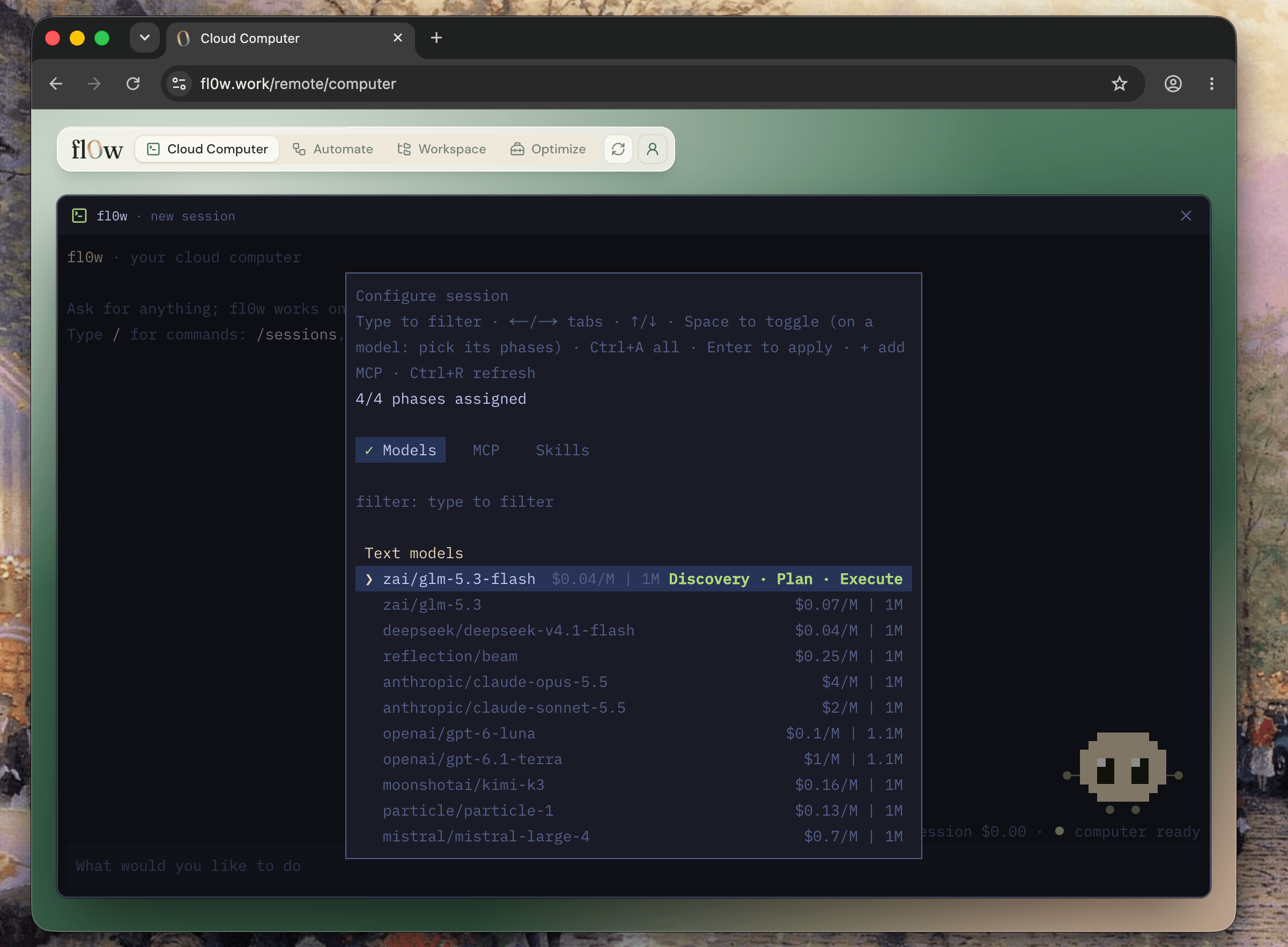
Configuring your agent
There are 3 main configurations you can choose at the start of your sessions:
- Models: Certain models are more performant/cost-effective at certain tasks
- MCP: Bring 3rd-party tools like Notion and Linear — configure servers in Adding MCP connectors or with
fl0w mcp. - Skills: Choose from installed skills from your project, from Claude, from Cursor — pick them per session with
/configure.
Fl0w's harness borrows concepts from Opencode and Claude Code for the latest practices in tool search and skill loading.
Fl0w was designed to be customizable and lightweight. The configurations allow you to be intentional with your models, the context windows, and capabilities as needed.
Generating and running your first workflow
Fl0w core use case is workflows that marry deterministic behavior with non-determinitic LLMs.
To templatize the actions you took in a session, use /generate to turn any session into a workflow template. The Automating sessions guide covers triggers and cloud runs in depth.

To run the workflow with additional inputs, use the /workflow command (or fl0w workflow headlessly).
Running workflows in the cloud
After you /generate a workflow, you can run these workflows locally with the /workflow command
OR run it remotely in your cloud computer. With cloud runs, you can run fl0w workflows:
- Every week, day, or hour
- Triggered via a webhook event
- A form fill you can share with colleagues

Check your workflow steps and your run history directly in the "Automate" tab.

Using your cloud computer workspace
Your cloud computer has its own filesystem. You can use the filesystem to:
- Create files and docs in markdown for easier reading
- Ask fl0w to read files as a way to load context
- Create folders to organize your work
- Clone repos and upload files for specific work — see Setting up codebases

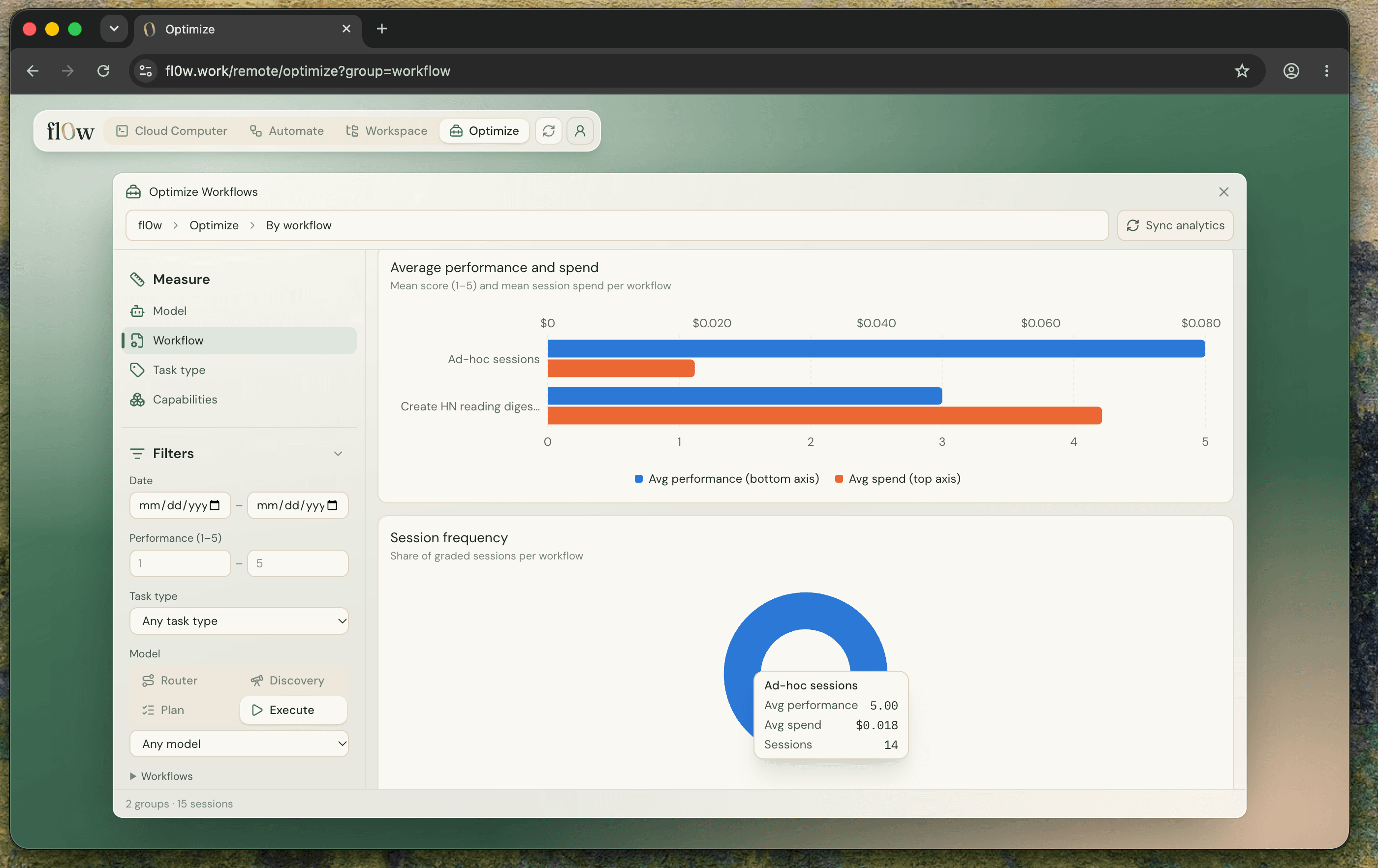
Optimize performance and cost
As you use fl0w more and more workflows, track your agent's performance and cost to make optimizations. We'll be adding more features so you can tune your workflows for your use cases.